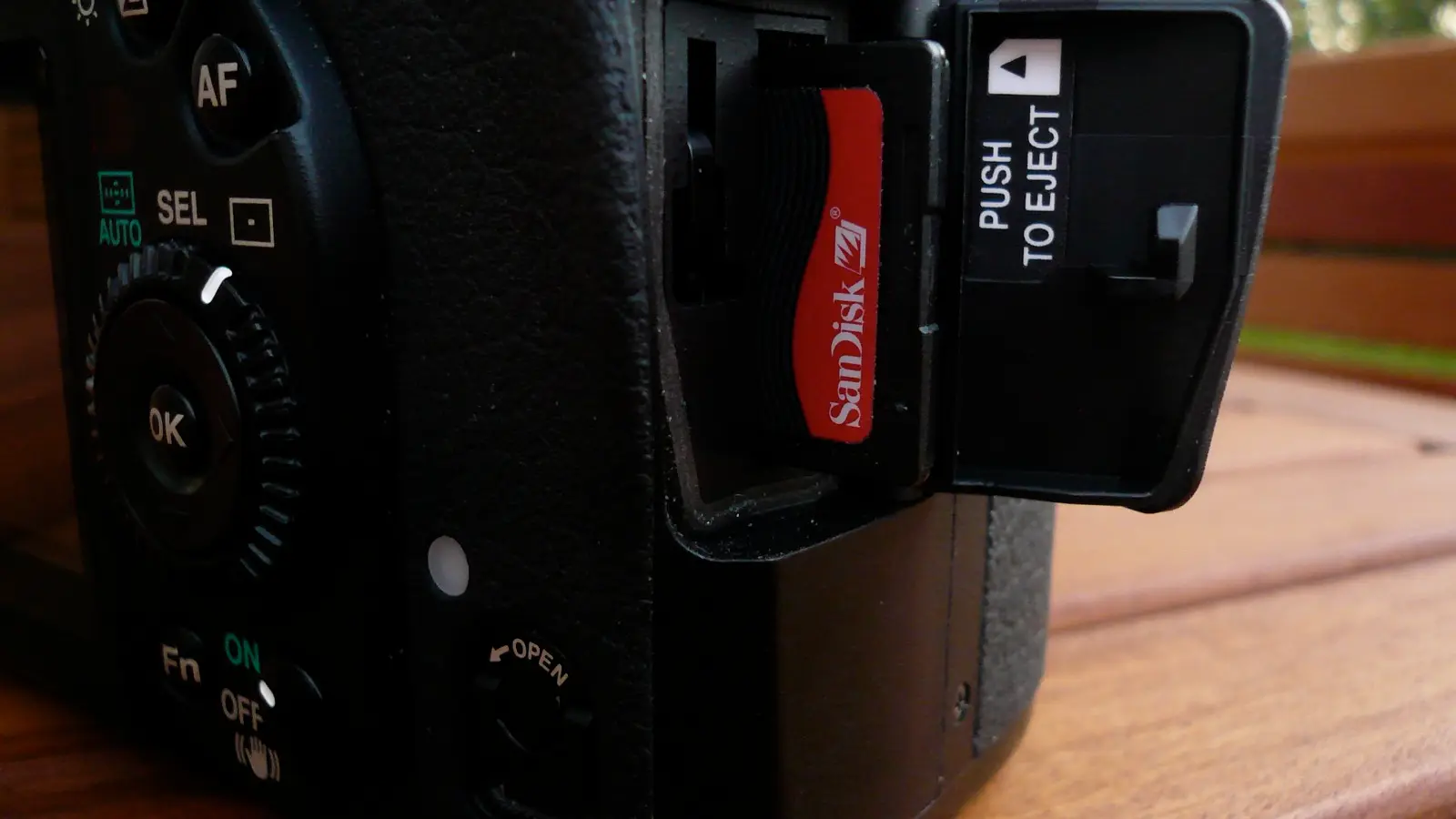
Format an SD card in the camera that will use it, after copying your files to a computer. Formatting erases everything on the card, including protected pictures. Canon and Nikon say a card from another camera or a computer should be formatted again in the camera, and Sony recommends formatting a new card there.
The short version
- Copy your photos and videos to a computer first. Formatting erases the card.
- Format in the camera, not on a computer, especially for a new card or one from another device.
- In the camera, look in the setup menu for Format (or Format card, Format memory card).
- Deleting pictures is not the same as formatting. Formatting wipes the card and sets it up for that camera.
- Do not turn the camera off or pull the card while it formats.
Back up first
Every maker warns that formatting is final. Sony says it permanently erases all data on the card and that it is unrecoverable. Canon says even protected images are erased. Fujifilm says to copy important files to a computer or other storage device first.
How to format in the camera
The menu names differ by brand and by model, but the idea is the same. Put the card in, open the setup menu, pick Format, choose the card slot, and confirm.
| Brand | Where to find it | Model covered |
|---|---|---|
| Canon | Format card (check your manual for the menu tab) | EOS R6 Mark III |
| Sony | MENU, then Setup, then Format | ILCE-6100 (a6100) |
| Nikon | G button, then the setup menu, then Format memory card | Z6III |
| Fujifilm | MENU/OK, then the SET UP tab, then USER SETTING, then FORMAT | X-T5 |
These are the paths on the models named. Other bodies from the same maker can differ, so check your camera's manual if you do not see the item.
Canon
Canon's manual says to format with the camera if the card is new or was formatted by another camera or a computer. It also lists a card that is full, or a card-related error, as reasons to format.
Canon offers an optional low-level format. It says to use it if the card seems slow to write or read, or if you want to erase the data completely. It takes longer than a normal format.
Sony
Sony recommends formatting a card in the camera the first time you use it, for stable card performance. It also says that if you format on a computer, the card may not be usable, depending on the format type.
Formatting also erases protected images and saved camera settings, according to the Sony page. Do not remove the card while the access lamp is lit.
Nikon
Nikon's manual says cards formatted in a computer or another camera should be reformatted with this option before use. Choose the card slot and select Yes.
Do not turn the camera off or remove the card until the "Formatting memory card" message clears. For CFexpress cards, Nikon offers full and quick format choices. This guide covers SD cards.
Fujifilm
On Fujifilm's X-T5 manual, highlight the slot with the card and press MENU/OK. A confirmation dialog appears.
Highlight OK and press MENU/OK to format. Select CANCEL or press DISP/BACK to exit without formatting. Do not open the battery-chamber cover during formatting.
Formatting an SD card on Windows or Mac
If you have to format on a computer, the SD Association has a formatting tool for Windows and Mac. Its SD Card Formatter manual says it is strongly recommended over the formatting tools built into operating systems, which may not be optimized for SD cards and may result in lower performance.
It has two options:
- Quick format deletes the file entries. The data in the files can still be recovered with a recovery tool.
- Overwrite format erases all data by overwriting the card. It takes much longer, depending on the card size.
Then format the card in your camera, since Canon and Nikon both say a card formatted on a computer should be formatted again in the camera.
exFAT or FAT32?
Canon ties the file system to the card type. Canon's manual lists SDHC cards as FAT32 and SDXC cards as exFAT. The SD Association defines SDHC as over 2 GB and up to 32 GB, and SDXC as over 32 GB and up to 2 TB.
In practice, that means:
- SDHC cards (over 2 GB, up to 32 GB) are FAT32.
- SDXC cards (over 32 GB, up to 2 TB) are exFAT.
Canon warns that exFAT cards may not be recognized by some computers or card readers.
Apple lists MS-DOS (FAT) and ExFAT as the Disk Utility formats compatible with Windows. The simplest way to avoid a mismatch is to format in the camera.
Format or delete?
Deleting pictures removes only the files you pick. Formatting erases everything on the card and sets it up again for the camera. Canon lists these reasons to format: the card is new, came from another device, is full, or the camera shows a card error.
Neither one securely wipes the card. Canon notes that formatting or erasing data does not completely erase it, so keep that in mind if you sell or give away a card. The SD Association says its overwrite format erases all data by overwriting the card.
What we checked
We read the maker pages above on Nov. 27, 2026 (U.S. Eastern time). Menu paths are for the camera models named in the table; check your own manual for others. The advice is each maker's, taken from its own pages.
For related reading, see our guide to cleaning a camera lens and our camera coverage.